
Organization Profile and Branding
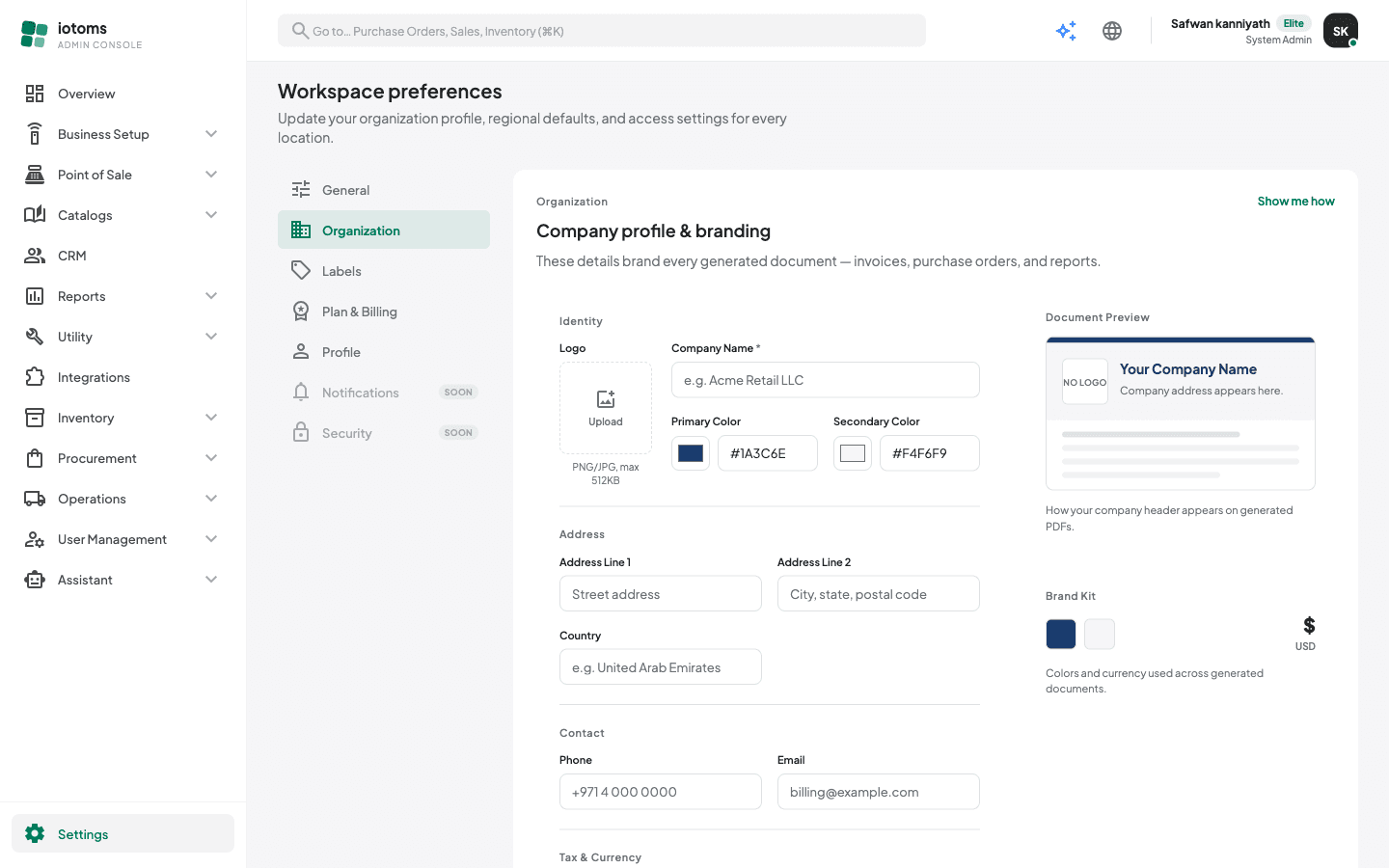
Organization is where you set your company's identity — logo, brand colors, address, contact details, tax registration, and currency. These details brand every generated document: invoices, purchase orders, and report PDFs. A live Document Preview on the right shows exactly how your company header will look on those PDFs as you type.
Click Show me how in the header for a quick guided tour of the screen.
Steps
- Open Settings → Organization — the Settings entry is pinned at the bottom of the sidebar.
- Fill in the Identity section:
- Logo — click the upload tile and choose a PNG or JPG up to 512 KB. The tile shows "On file" when a logo is already saved; hover and click Replace to swap it.
- Company Name (required)
- Primary Color and Secondary Color — use the color swatch picker or type a hex value in
#RRGGBBformat. Primary is used for your company name and the top accent bar on documents; secondary is the header background.
- Fill in the Address section: Address Line 1, Address Line 2, and Country.
- Fill in the Contact section: Phone and Email (the email must be a valid address if provided).
- Fill in the Tax & Currency section:
- Tax Registration Label — the caption printed before your tax number, e.g. "TRN / VAT No."
- Tax Registration Number — e.g. 100123456700003
- Currency Code (e.g. USD) and Currency Symbol (e.g. $)
- Fill in the Documents section — both are printed on invoices, purchase orders, and report PDFs:
- Footer Text — shown at the bottom of generated documents
- Terms & Conditions — printed on invoices and purchase orders
- Check the Document Preview and Brand Kit cards on the right — they update live as you type.
- Save from the amber unsaved-changes bar. The form won't save while the company name is empty, a color isn't valid
#RRGGBB, or the email is malformed — a message under the form tells you which.