
Monitoring Day Cycles
A day cycle is one field rep's working day — from Day Start on the mobile app to Day Close. The Day Cycles screen gives you a live picture of all cycles in a date range. It is a read-only view: cycles are started and closed from the mobile app, never from the portal.
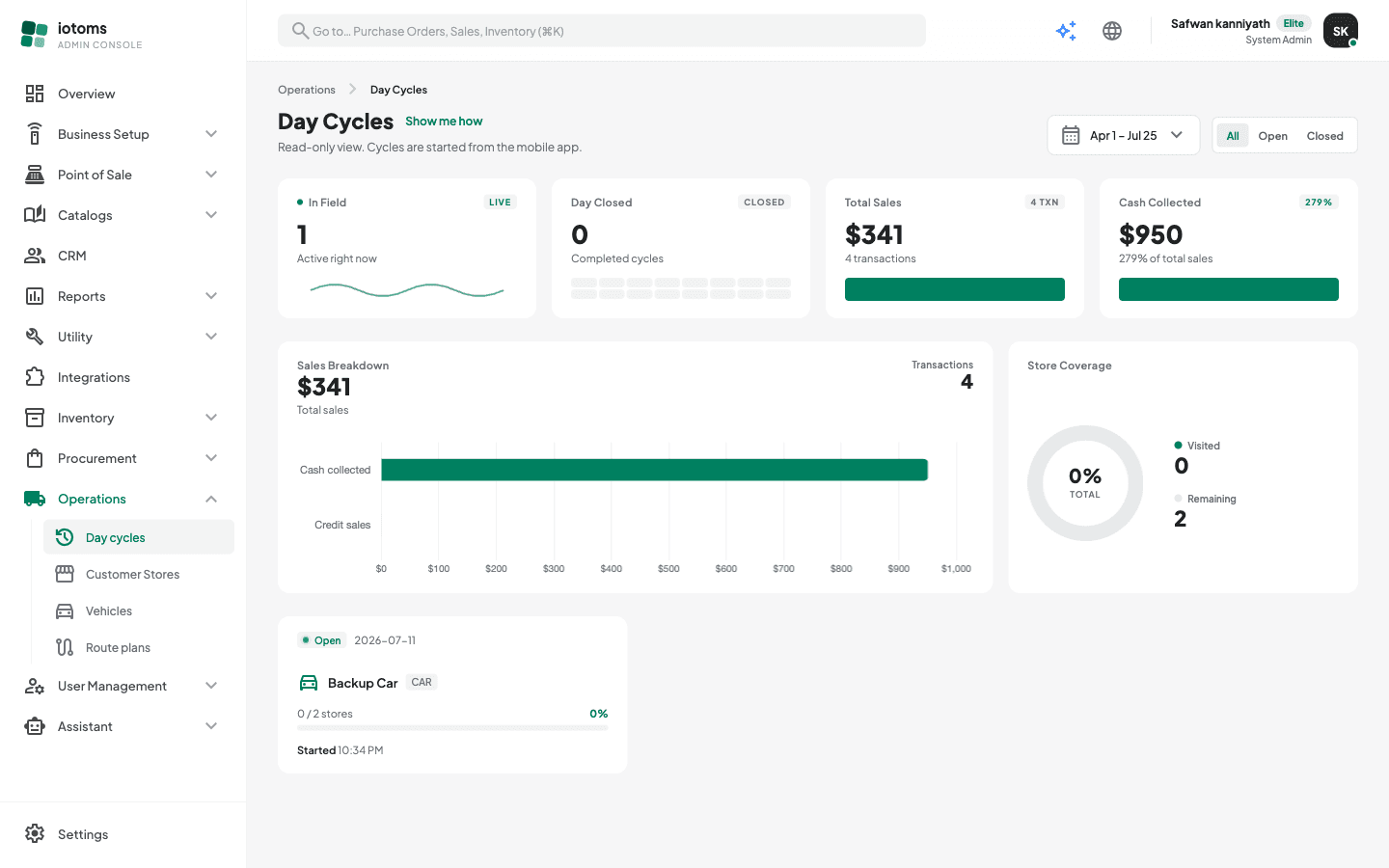
Steps
- Open Operations → Day Cycles from the sidebar.
- Pick the date range you want with the date range filter at the top right. The whole screen — KPIs, charts, and the cycle list — follows this range.
- Narrow by status with the All / Open / Closed pill filter next to it:
- Open — reps currently in the field (the badge shows a live pulsing dot).
- Closed — completed cycles.
- Read the four KPI cards:
- In Field — cycles active right now (marked LIVE).
- Day Closed — completed cycles in the range.
- Total Sales — sales value across the range, with the transaction count.
- Cash Collected — cash taken, with its share of total sales.
- Below the KPIs, two charts summarize the range:
- Sales Breakdown — total sales split into cash collected vs credit sales.
- Store Coverage — a donut of stores visited vs stores still remaining, with the overall coverage percentage.
- Scroll to the cycle cards. Each card shows the status badge and business date, the vehicle (with its type), a coverage bar (
visited / total storesand the percentage), and the start — and, once closed, the close — time. - Click any cycle card to open its full detail — see Reading a Day Cycle's Detail.
If the list is empty, there are simply no cycles for that date — try a wider date range or a different status.
Tip: the first time you visit this screen a short guided tour starts automatically; you can replay it any time with the Show me how link next to the page title.