
Reading a Day Cycle's Detail
Clicking a cycle card on Day Cycles opens that cycle's detail page. The header shows the vehicle, an Open or Closed badge, the business date, and the start/close times. Everything else is organized into four tabs.
Documents (top right)
Two PDF documents can be generated for any cycle:
- Day-End Summary — the rep's day-end report.
- Route Settlement — the settlement document, annotated with the coverage percentage.
Click Generate, then View PDF once it's ready. While a cycle is still Open, the PDF is stamped Provisional and a refresh button lets you regenerate it with the latest numbers. Once the cycle is Closed, the document becomes Final and is served as-is.
Overview tab
- Vehicle — which vehicle was used, with start/end odometer readings and the distance travelled (shows "In progress" until day close).
- Cash — opening cash issued at day start and closing cash at day close.
- Coverage — stores visited out of the total assigned, with a progress bar.
- Sales stats — total sales, transaction count, cash collected, and credit total.
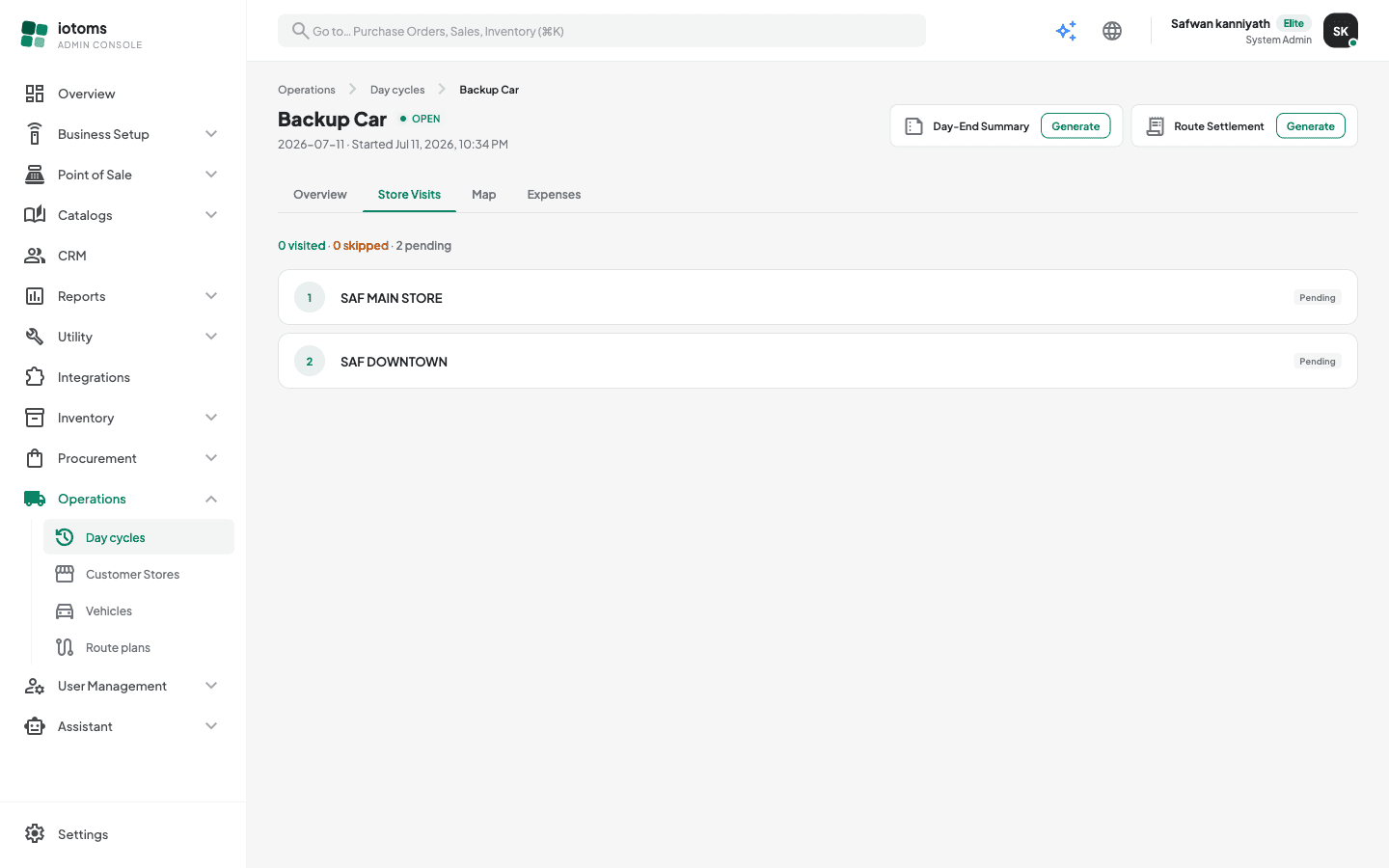
Store Visits tab
The planned stops in route order, with a summary count of visited / skipped / pending. Each stop shows:
- its sequence number and store name,
- for Visited stops — the visit time,
- for Skipped stops — the skip reason the rep chose (Store closed, Owner unavailable, Credit limit reached, Low stock, or Other),
- any notes the rep left.
Map tab
A GPS map of the route. If you see "Map not available", either no GPS coordinates were recorded for the cycle, or your account doesn't have the GPS map permission — see Tips and FAQ.
Expenses tab
Field expenses the rep submitted during the day, waiting for your review:
- The summary bar shows the total amount and how many expenses are Pending / Approved / Rejected.
- Filter with the All / Pending / Approved / Rejected pills.
- Each expense card shows its title, amount, category (Fuel, Vehicle Maintenance, Toll / Parking, Food & Refreshment, or Miscellaneous), vendor, payment mode, and date.
- On a Pending expense, click Approve, or click Reject and enter a reason — the reason is shown on the card and back to the rep.
An expense can only be reviewed once; if someone else already approved or rejected it you'll see a message saying so.