
Creating a Route Plan
A route plan is a reusable template for a field rep's day: an ordered list of customer store stops plus a coverage target. You build it once, pair it with a vehicle, and the mobile app uses that pairing every time the rep starts a day on this route.
Before you start, make sure the shops you want on the route already exist — see Adding a Customer Store.
Steps
- Open Operations → Route Plans from the sidebar and click New route plan.
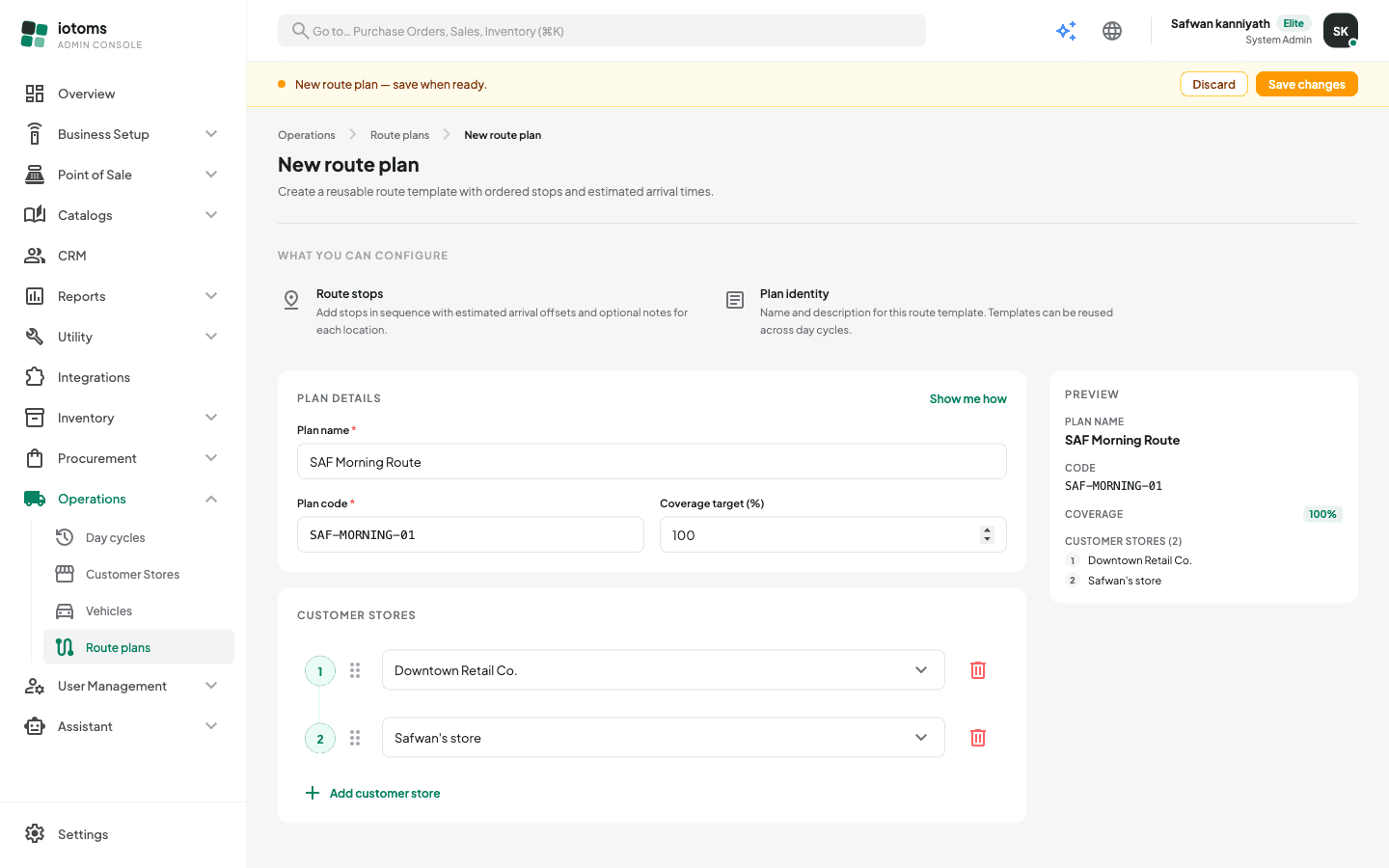
- Fill in Plan details:
- Plan name (required) — e.g.
SAF MORNING ROUTE. - Plan code (required) — a short unique code, e.g.
SAF-MORNING-01. - Coverage target (%) — the share of stops the rep is expected to visit in a day (0-100, defaults to 100). Day cycles report actual coverage against this.
- Plan name (required) — e.g.
- Build the stop list under Customer stores:
- Each numbered row is one stop. Pick a customer store from the dropdown — each option shows the store's name and address/city, and a store already used on another row disappears from the choices (a store can appear only once per plan).
- Click Add customer store to add the next stop. The button stays disabled until the current row has a store selected.
- Reorder stops by dragging the handle at the left of a row — the sequence numbers renumber automatically.
- Remove a stop with the red bin icon on its row.
- The Preview card on the right shows the plan name, code, coverage badge, and the ordered stop list as you build.
- Save from the amber unsaved-changes bar.
Assign a vehicle (right after saving)
After the save, the page header changes to "Route plan saved. Assign a vehicle below, or leave it unassigned for now":
- Click the Assign vehicle button that appears at the top right.
- Pick a vehicle from the dropdown — only Active vehicles are offered (see Adding and Managing Vehicles) — or choose No vehicle (unassign).
- Click Save assignment.
The pairing is what the mobile app uses when the field rep taps Day Start on this route. You can also assign or change the vehicle later from the route plans list — see Reviewing Route Plans.
Tip: a Show me how link in the Plan details card replays the guided tour for this form.