
Managing Inventory Locations
A location is any place stock can live — a warehouse, a store, a van, a manufacturing site, or an in-transit holding point. Locations are the endpoints of every stock transfer, so set them up before you start moving stock.
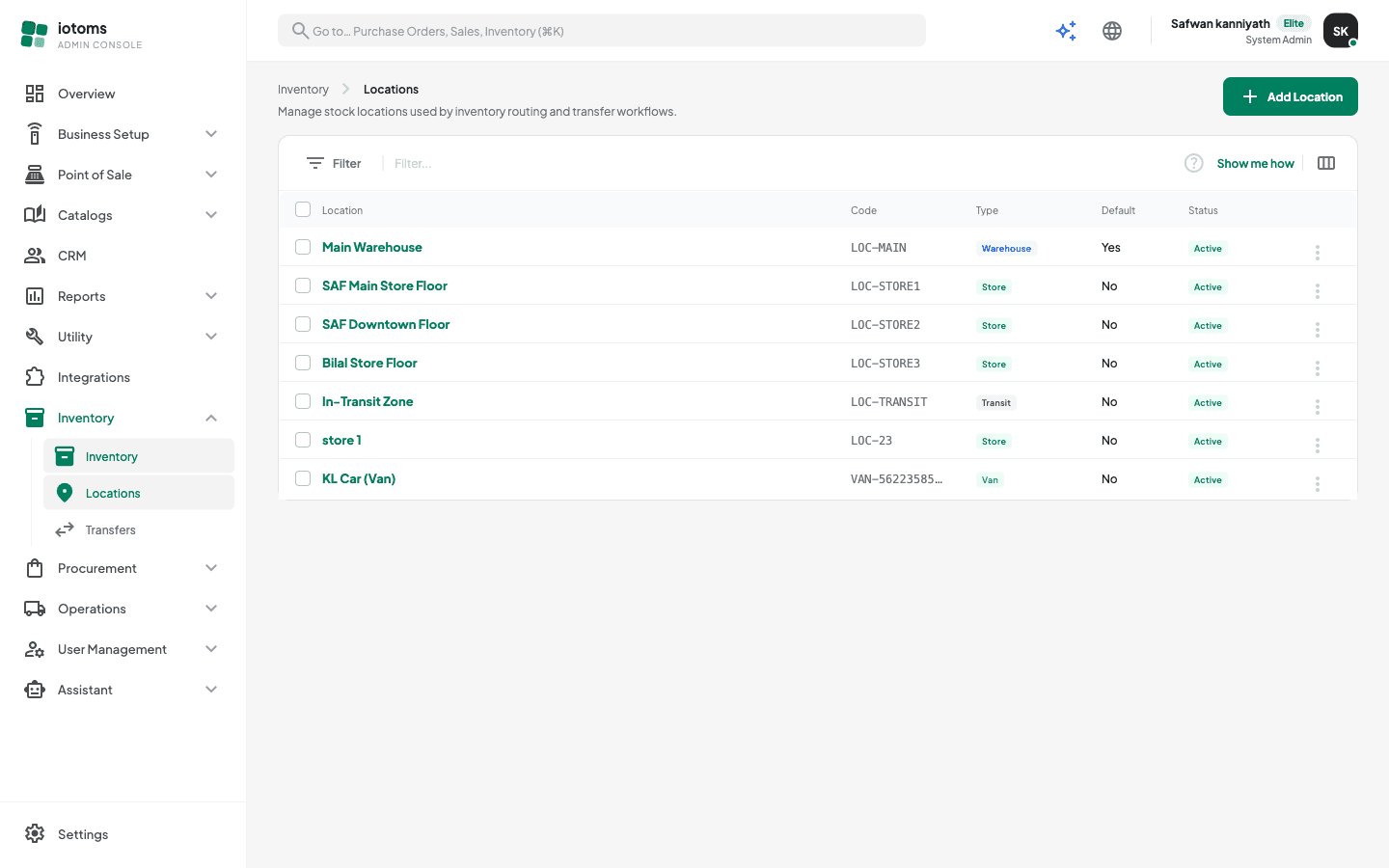
Reading the list
Open Items → Locations from the sidebar. Each row shows:
- Location — the location's name; click it to open the location's detail page.
- Code — the short unique code you gave it (e.g.
WH-KL-01). - Type — a colored pill: Warehouse, Store, Van, Manufacturing, or Transit.
- Default — Yes/No; whether this is your default location.
- Status — Active or Inactive. Only active locations can be picked when creating a transfer.
Use the Filter button to narrow the list by Location type or to show Only active locations — the list updates immediately, and Clear resets it. A Show me how link above the list replays the guided tour of this screen any time.
Adding a location
- Open Items → Locations from the sidebar.
- Click Add Location.
- In the Create location dialog, fill in:
- Location code (required) — a short unique identifier, e.g.
WH-KL-01. Choose carefully: the code cannot be changed later. - Location name (required) — a human-friendly name, e.g.
Main warehouse. - Location type — Warehouse, Store, Van, Manufacturing, or Transit.
- Set as default location — tick to make this your default.
- Location code (required) — a short unique identifier, e.g.
- Click Create. You'll see a "Location created" confirmation and the new location appears in the list.
Editing a location
- Open the row's ⋮ actions menu and choose Edit.
- You can change the Location name, Location type, and the default flag. The location code is fixed at creation and cannot be edited.
- Click Save.
Deactivating a location
- Open the row's ⋮ actions menu and choose Deactivate.
- The location's status flips to Inactive. It stays in the list for history, but it disappears from the From/To pickers when creating a transfer.
There is no delete — deactivation is how you retire a location you no longer use.
Viewing a location's stock
Click a location's name (or ⋮ → View details) to open its detail page, which shows:
- The location's name, type, and Default/Inactive badges.
- Four summary cards — Items, Total QOH, Reserved, and Low-Stock Items.
- A Location Inventory table of the stock currently mapped to this location, with each item's QOH, Reserved, Available, and Low/Healthy state. Click an item to jump to its inventory detail.