
Checking Quantity on Hand
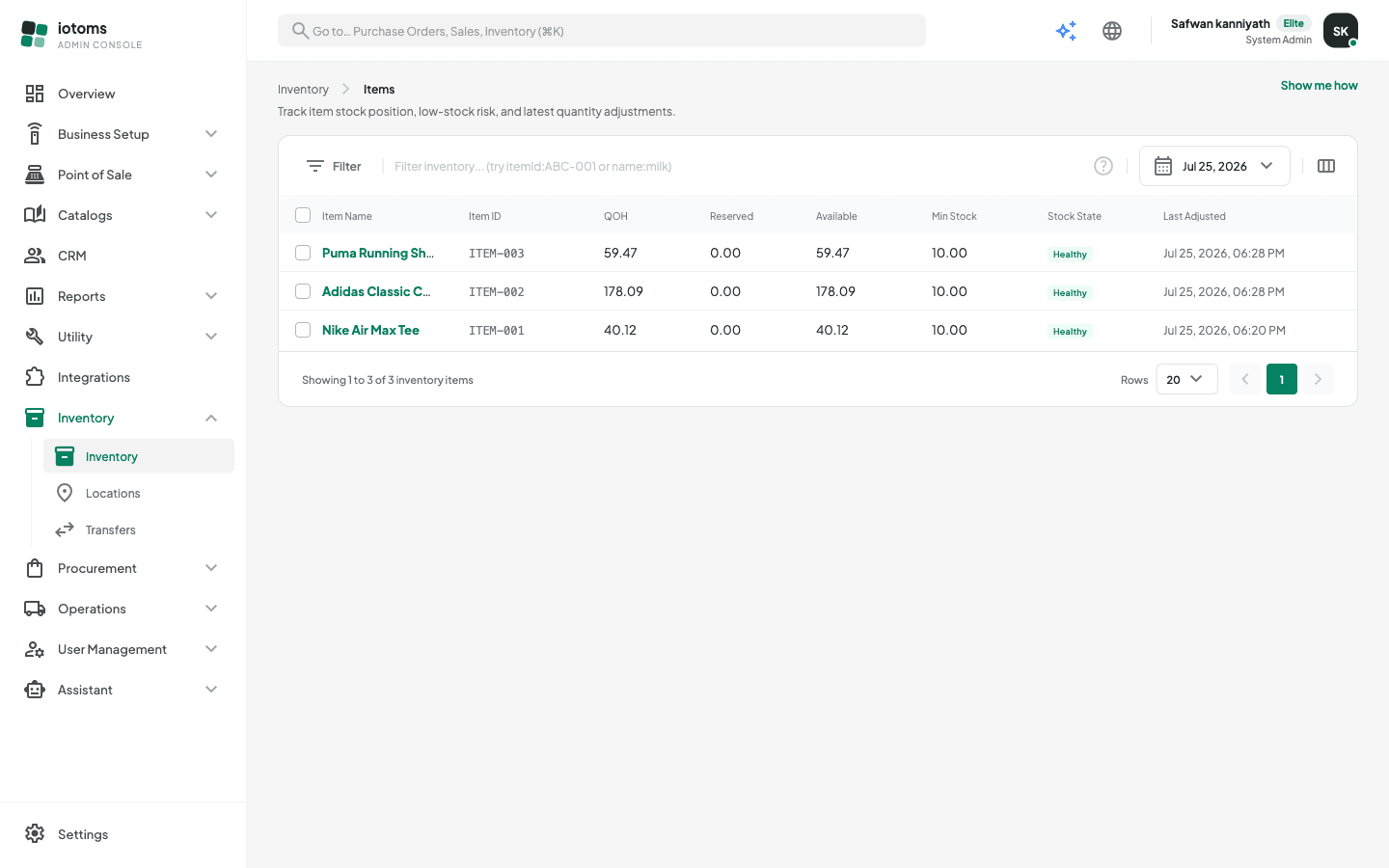
The main Inventory screen is a live stock list of all your items. Use it to spot low-stock risk at a glance and to find any item's current position.
Reading the list
Each row shows:
- Item Name and Item ID — click the name to open the item's inventory detail.
- QOH — total quantity on hand.
- Reserved — stock committed elsewhere.
- Available — QOH minus Reserved; what you can actually use.
- Min Stock — the item's minimum stock threshold (shows "—" if none is set).
- Stock State — a Low pill when the item has fallen to or below its minimum stock level, otherwise Healthy.
- Last Adjusted — when the quantity was last changed.
Finding an item
- Open Inventory from the sidebar.
- Type in the search box at the top of the list. Plain text searches by name; you can also use targeted filters like
itemId:ABC-001orname:milk. - The search runs across your whole inventory, not just the rows currently on screen — so an item on a later page will still be found.
Showing only low-stock items
- Click the Filter button next to the search box.
- In the Filter Inventory drawer, tick Only low-stock items under Stock state.
- The list updates immediately — there is no Apply button. Untick it (or use Clear) to see everything again.
Tip: you can also type lowstock:yes directly into the search box for the same effect.
Other controls
- Date range — narrow the list by adjustment date using the date range picker in the toolbar.
- Rows per page — choose 10, 20, 50, or 100 rows, and page through with the controls at the bottom.
- Show me how — click this link at the top of the page any time to replay the short guided tour of this screen.