
Deactivating or Deleting a User
When someone leaves the team or shouldn't have access for a while, you have two options: deactivate (reversible) or delete (removal from the list). Prefer deactivating unless you're sure the account should go.
Finding the user
- Open Admin → Users from the sidebar.
- Use the search box (matches username, name, and email) or click the filter button to open the filter panel, where you can also narrow the list by Role.
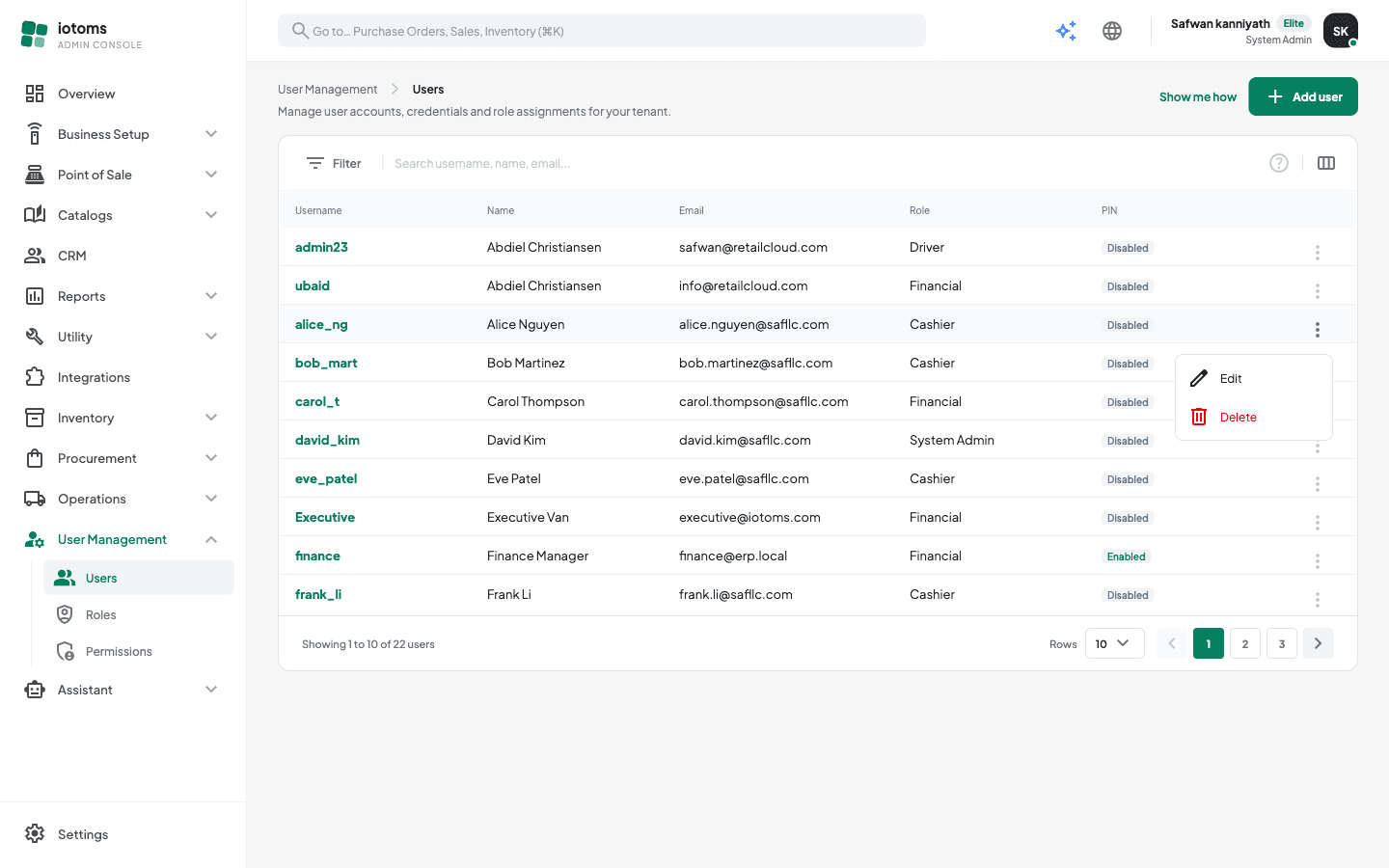
Deactivating a user (reversible)
- Open the user's row ⋮ menu and choose Edit (or click their username).
- Switch Status to Inactive.
- Save from the amber unsaved-changes bar.
The user can no longer log in, but the account and its details are kept. Switch Status back to Active at any time to restore access — see Editing a User.
Deleting a user
- Open the user's row ⋮ menu and choose Delete.
- A confirmation dialog appears — click confirm to proceed.
The account is soft deleted: it disappears from the list and the person can no longer log in. There is no way to restore it from the portal, so if there's any chance the person returns, deactivate instead.
Disconnecting someone's Google account
If your workspace uses Google sign-in (see Letting Staff Sign In with Google), users who have connected a company Google account show a Google badge next to their username. Hover the badge to see which Google email they sign in with.
- Open the user's row ⋮ menu and choose Disconnect Google. The option only appears on users with the Google badge.
- Confirm in the dialog.
They can no longer sign in with that Google account; their password still works. Disconnecting does not sign them out of a session that is already open. To cut access straight away, deactivate the user instead.
Deleting a role
Roles have the same row ⋮ → Delete action on the Roles list, but a role deletion is permanent. Before deleting a role, reassign any users still on it to another role — see Editing a User.