
Browsing and Finding Items
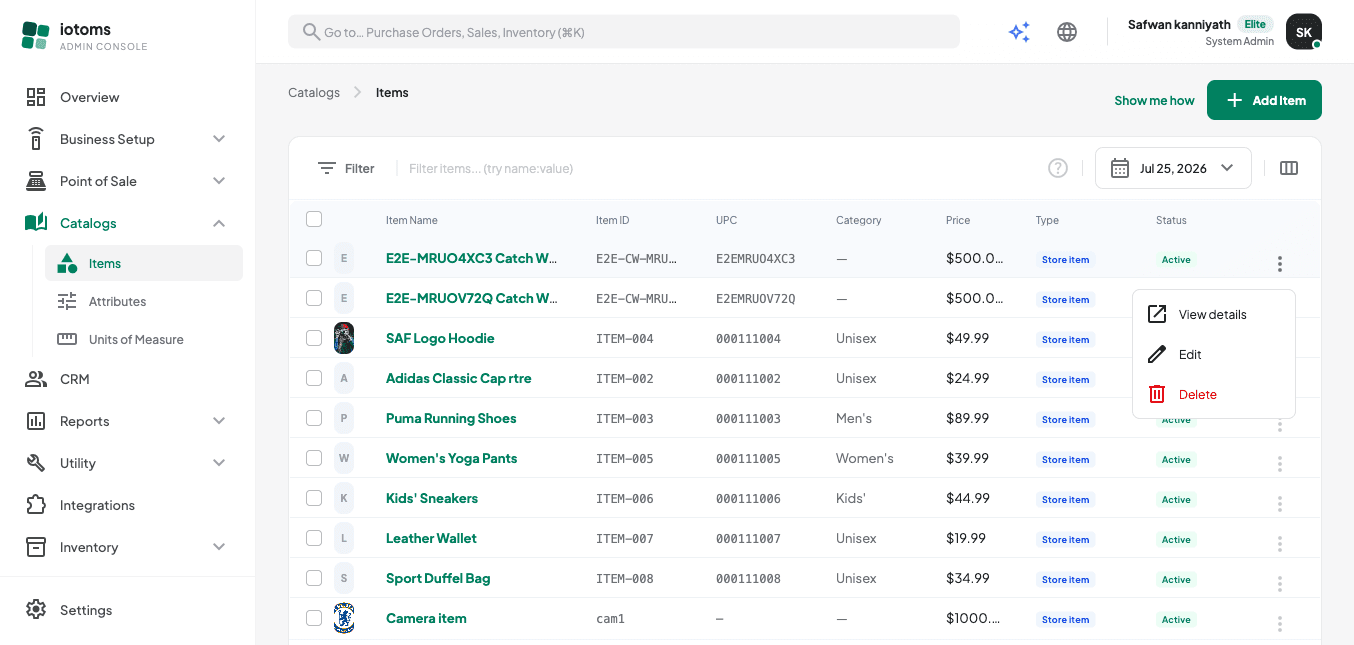
- Open Items → Items from the sidebar.
- The list shows every item with its photo, name, Item ID, UPC, category, selling price, type, and status.
- Use the search box at the top (placeholder: "Filter items... (try name:value)") to search by
typing a plain word (matches item name) or a
field:valuepair — for examplebrand:Nikeorcategory:Footwear. You can also filter byupc:,id:,department:, orsubcategory:. - Click the filter icon to open the filter drawer for structured filtering by Department, Category, Subcategory, Brand, Type (Store Item / Modifier Item), and Status (Active / Inactive / Archived). Filters apply live — no "Apply" button needed. The panel names how many filters are on under its title; Clear all in the top-right resets them, and the green button at the bottom — "Show N items" — just closes the panel over the list it is already showing.
- Use the page-size control at the bottom of the list to show 10, 25, 50, or 100 items per page, and the pager to move between pages.
Continue to Adding a New Item to create your first item.