
Editing or Deleting a Customer
Editing a customer
- Open the customer's profile — click their name in the CRM → Customers list, or use Edit from the row actions menu (both land on the same profile page).
- Change any field directly — name, contact details, location, or Category (pick a suggested label or type a new one; clear the box to remove the label). The Customer number is the one field you can't change; it's assigned by the server and stays fixed.
- To change the customer's Status, click Active, Inactive, or Archived in the pill row on the right.
- As soon as anything changes, the amber unsaved-changes bar appears — click Save to apply your edits, or Discard to revert the form to what's on file.
Deleting a customer
Deleting is done from the list, not the profile page:
- Open CRM → Customers from the sidebar.
- Open the row actions menu ("...") on the customer's row and choose Delete.
- A confirmation dialog shows the customer's name and warns that the action cannot be undone. Confirm to delete.
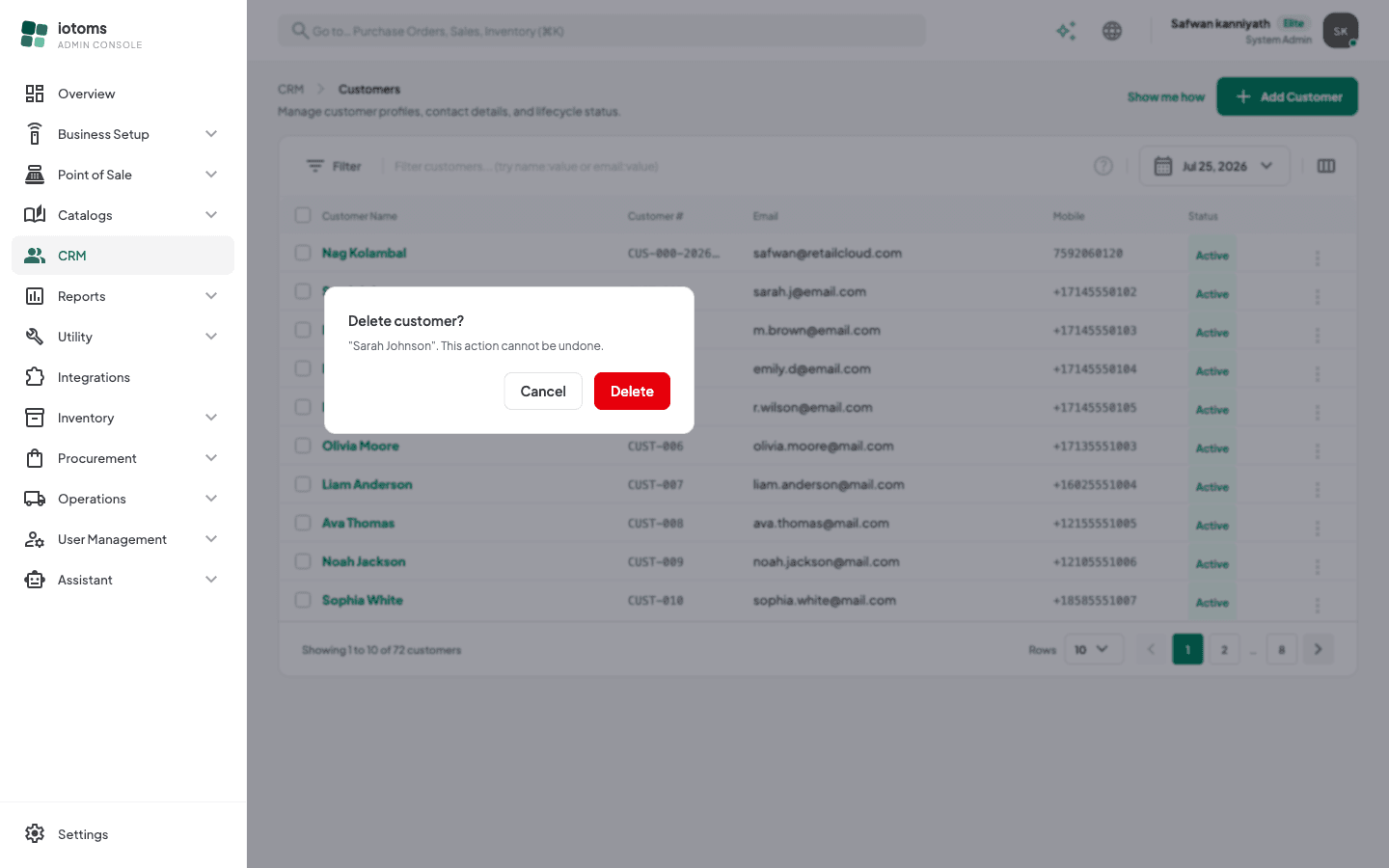
Deletion is permanent — there is no undo or recycle bin. If you just want the customer out of day-to-day use, set their status to Inactive or Archived instead and save; you can always reactivate them later.
Not sure which status to pick? See Tips and FAQ.