
Finding and Filtering Customers
-
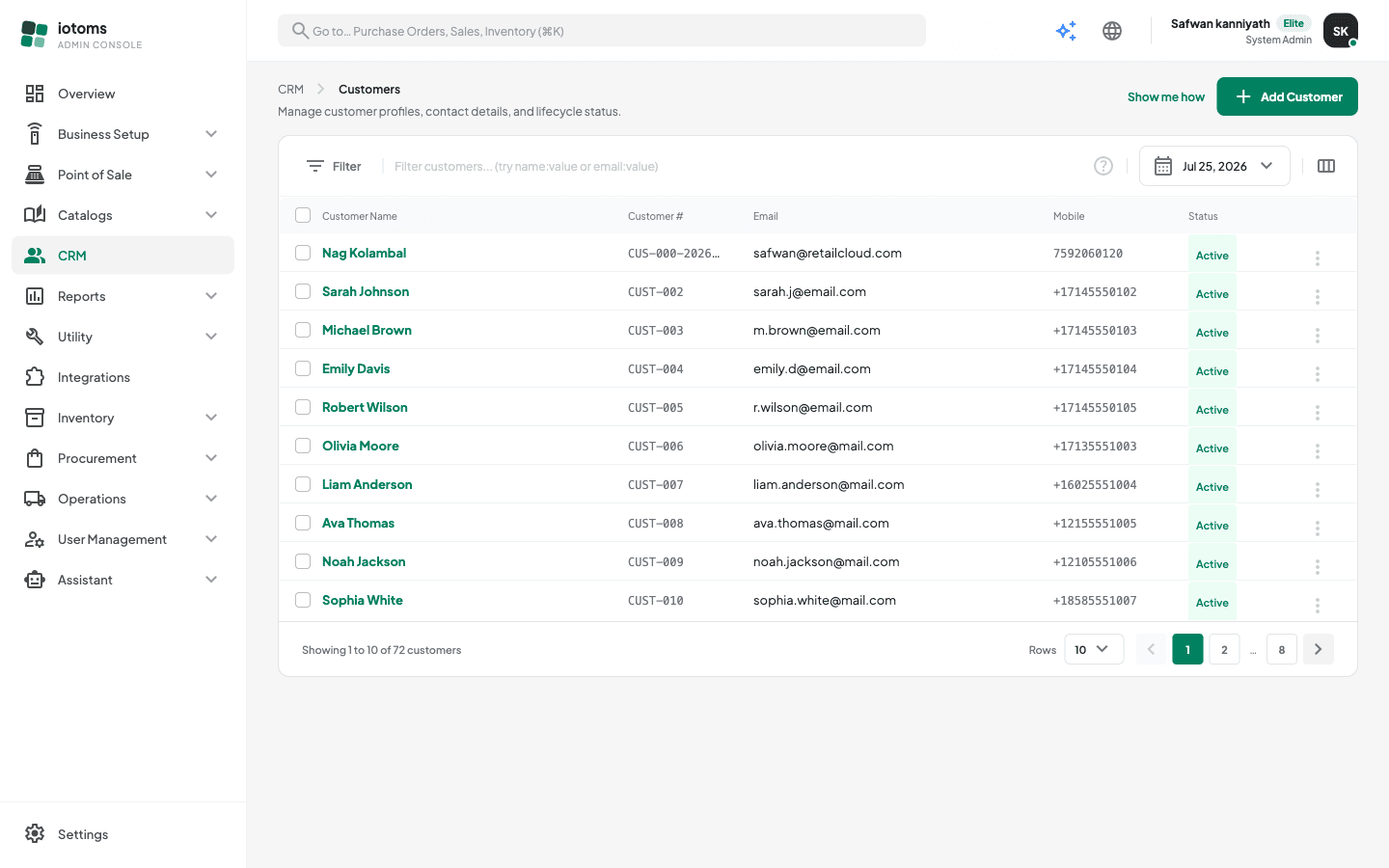
Open CRM → Customers from the sidebar.
-
The list shows every customer with their Customer Name, Customer #, Email, Mobile, Category badge (your own label, e.g. "Food customer" — a dash means none set), and Status badge (Active, Inactive, Archived).
-
Use the search box at the top (placeholder: "Filter customers... (try name:value or email:value)") in two ways:
- Type a plain word — it matches against the customer's first name.
- Type a
field:valuepair for a targeted search — for exampleemail:ahmad@example.com,mobile:+97150, orname:Ahmad. You can also search bycustomernumber:,phone:,countrycode:,category:(exact label, e.g.category:Food customer), orstatus:(e.g.status:active,inactive).
-
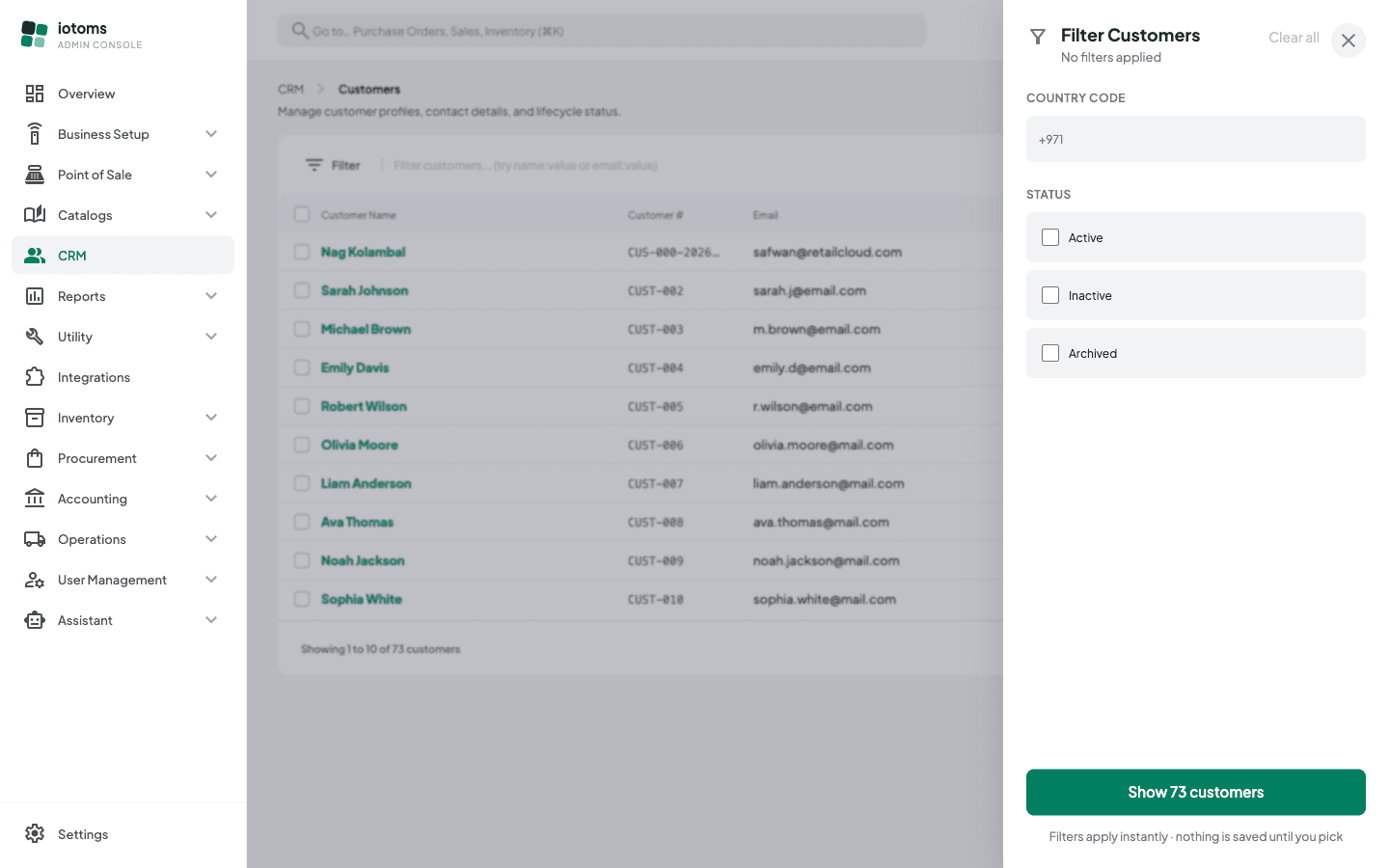
Click the filter icon to open the Filter Customers drawer for structured filtering:
- Country code — type a code such as
+971to narrow to one country. - Status — tick any combination of Active, Inactive, and Archived.
- Category — tick one of your own labels to see only those customers; the rows list every category currently in use. One at a time: picking another label switches to it, and unticking (or Clear all) brings everyone back. The section only appears once at least one customer has a category.
Filters apply live — there is no "Apply" button. The panel names how many filters are on under its title; Clear all in the top-right resets them, and the green button at the bottom — "Show N customers" — just closes the panel over the list it is already showing.
- Country code — type a code such as
-
Use the page-size control at the bottom to show 10, 25, 50, or 100 customers per page, and the pager to move between pages.
Found the customer you were looking for? Click their name to open their profile — see Viewing a Customer Profile. Can't find them? They may not exist yet — see Adding a Customer.