
Adding a Customer
Only three fields are required to create a customer — first name, email, and mobile number — so you can capture a new customer quickly and fill in the rest later.
Steps
- Open CRM → Customers from the sidebar.
- Click Add Customer in the top-right corner.
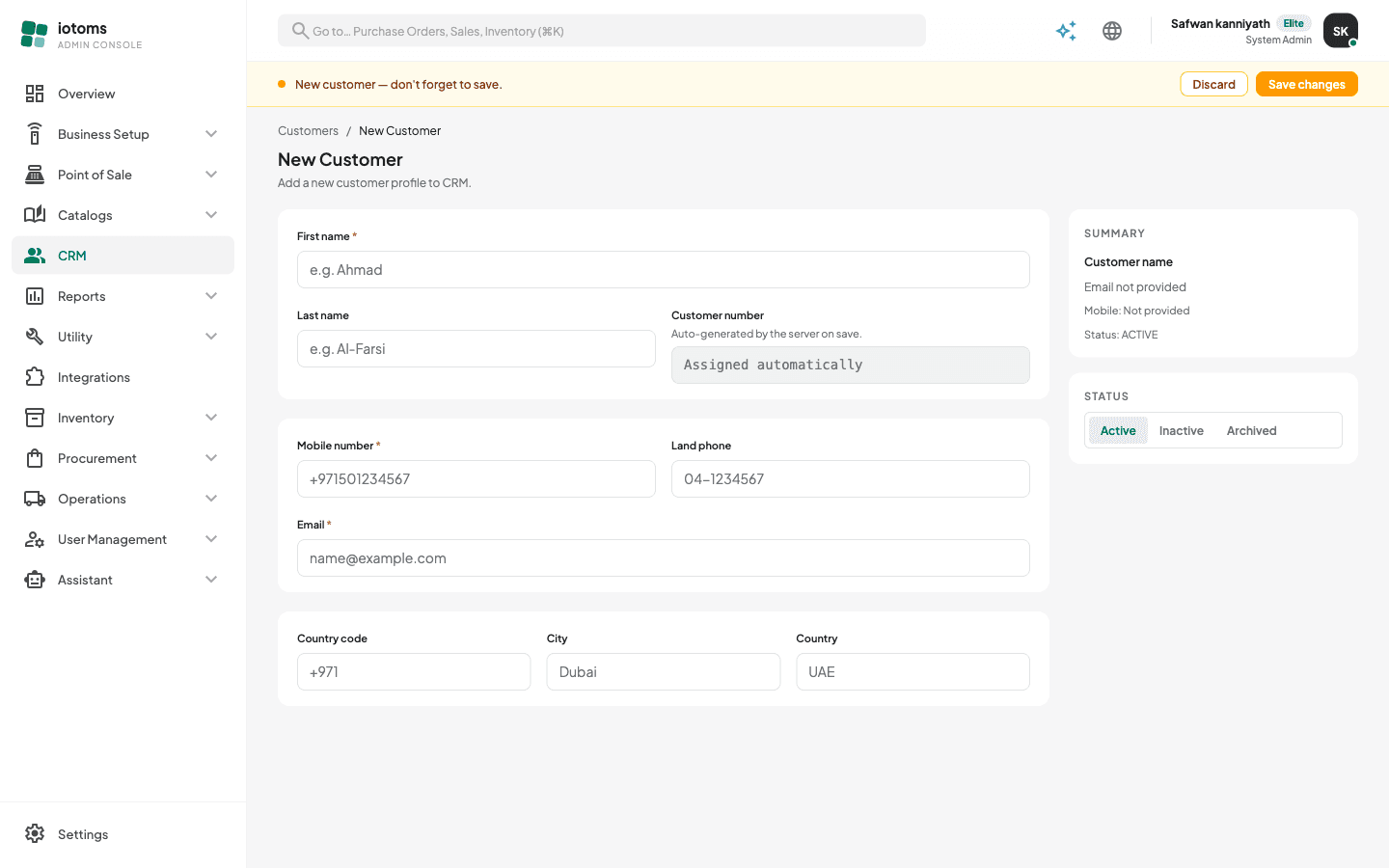
- Fill in the Basic info card:
- First name (required)
- Last name
- Customer number — read-only; it is assigned automatically by the server when you save.
- Category — your own label for grouping customers, e.g. "Food customer". Start typing and pick one you've used before from the suggestions, or type a brand-new one — it becomes a suggestion for next time automatically. Leave it empty if you don't group customers.
- Fill in the Contact info card:
- Mobile number (required) — digits only, with an optional leading
+, e.g.+971501234567. - Land phone
- Email (required) — must be a valid email address.
- Mobile number (required) — digits only, with an optional leading
- Optionally fill in the Location card: Country code (e.g.
+971), City, and Country. - Pick a Status from the pill row in the right-hand panel — Active, Inactive, or Archived. New customers start as Active. The Summary card above it previews the name, email, and mobile as you type.
- Changes are tracked by the amber unsaved-changes bar — click Save there (or Discard to throw the entry away).
Once saved, you're taken straight to the new customer's profile page — see Viewing a Customer Profile.