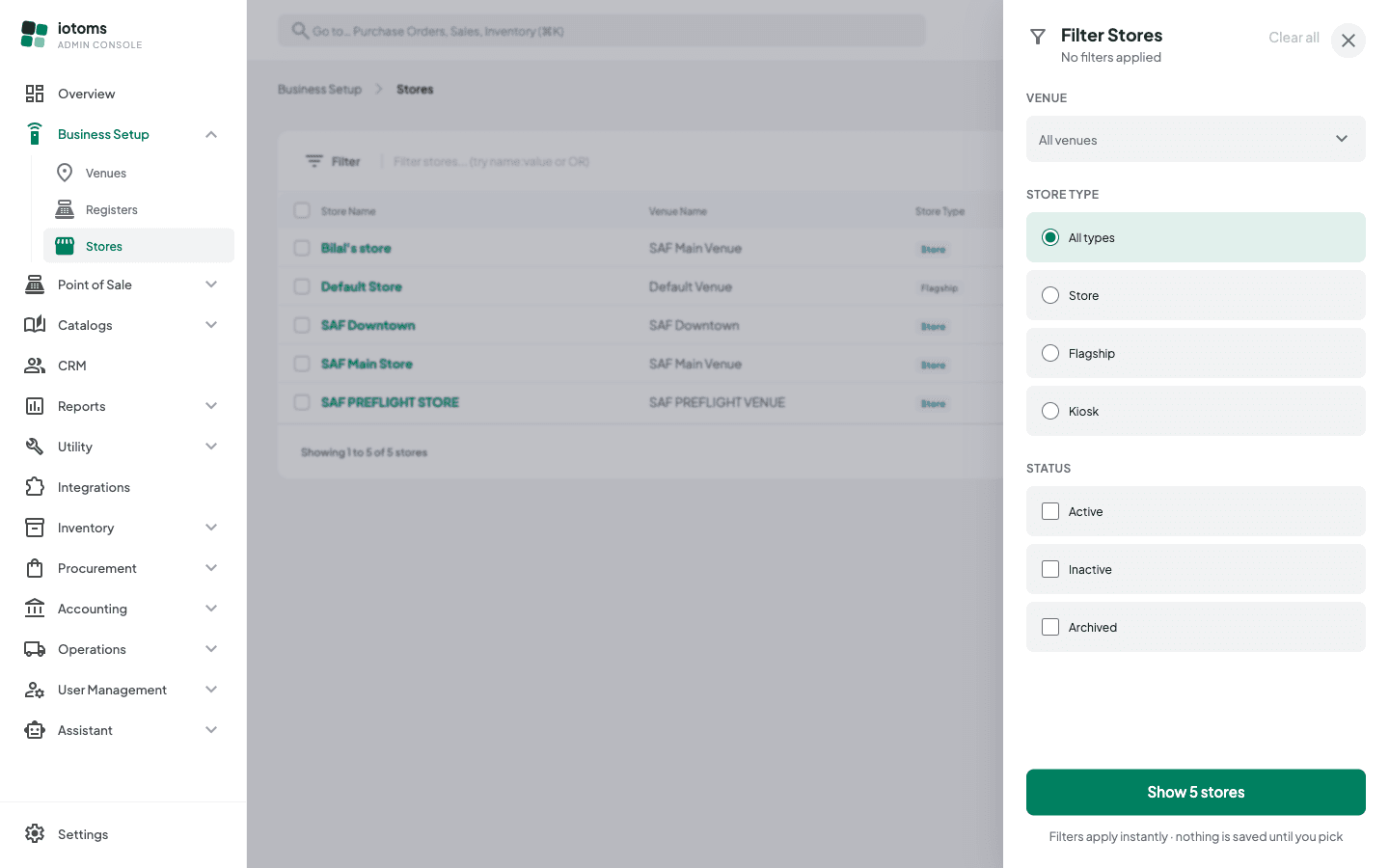
Finding and Filtering Stores
Use the Stores list's search box and filter drawer to narrow down a long store list, or to jump straight to a store's status.
Steps
- On the Stores list, use the search box (placeholder: "Filter stores... (try name:value or OR)") to search by name or a
name:valuepair. - Click the filter icon to open the filter drawer for structured filtering by Venue, Store Type (Store / Flagship / Kiosk), and Status (Active / Inactive / Archived). Filters apply live — no "Apply" button needed. The panel names how many filters are on under its title; Clear all in the top-right resets them, and the green button at the bottom — "Show N results" — just closes the panel over the list it is already showing.
- Use the page-size control and pager at the bottom to move through results.
- Click a store's Status badge in the list to cycle it directly (Active → Inactive → Archived → back to Active) without opening the store.