
Tracking a Purchase Order's Status
Every purchase order moves along a fixed workflow: Draft → Submitted → Approved → Sent → Received. A PO can also be Cancelled at any point before it's sent.
Finding an order
- Open Purchases → Purchase Orders from the sidebar.
- Search by PO number or vendor in the search box, or open the filter drawer to filter by status (Draft, Submitted, Approved, Sent, Cancelled).
- Click a PO number to open its detail page.
Reading the detail page
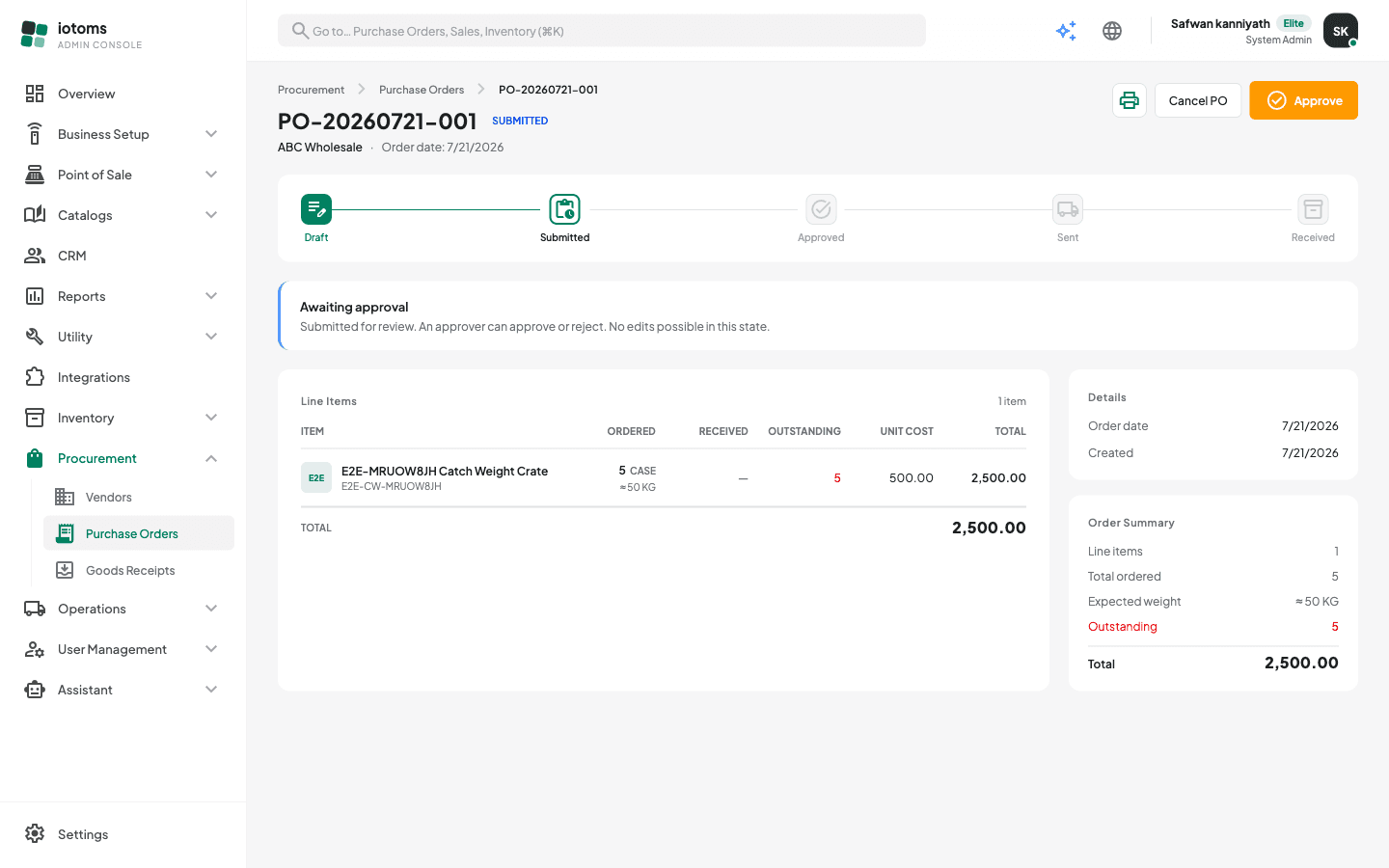
- The timeline at the top shows which workflow step the order is on.
- The status card below it explains what the current state means and what happens next.
- The Line Items table shows, per item: Ordered, Received (green when fully received, amber when partial), and Outstanding (red while anything is still due).
- The sidebar shows order dates, who submitted and approved it, an order summary, and any notes.
- The PDF button in the header downloads a printable copy of the order.
Moving an order forward
The header shows one primary action at a time, depending on the current status:
- Draft → click Submit for Approval. The order is now locked for review — no edits are possible.
- Submitted → an approver clicks Approve.
- Approved → click Send to Vendor to dispatch the order.
Each action asks you to type your name and press Confirm — this is recorded on the order as "Submitted by" / "Approved by".
Received is never clicked manually: the order reaches it automatically once goods receipts confirming all its quantities have been recorded — see Recording a Goods Receipt.
Cancelling an order
While the order is Draft, Submitted, or Approved, a Cancel PO button is available in the header. Once an order has been Sent to the vendor it can no longer be cancelled from here.
Receiving against the order
Once the order is Approved or Sent, a Create Goods Receipt button appears in the sidebar — it opens a new GRN pre-linked to this PO with all its lines filled in.