
Finding, Editing, or Deleting a Vendor
All your suppliers live in the list at Purchases → Vendors.
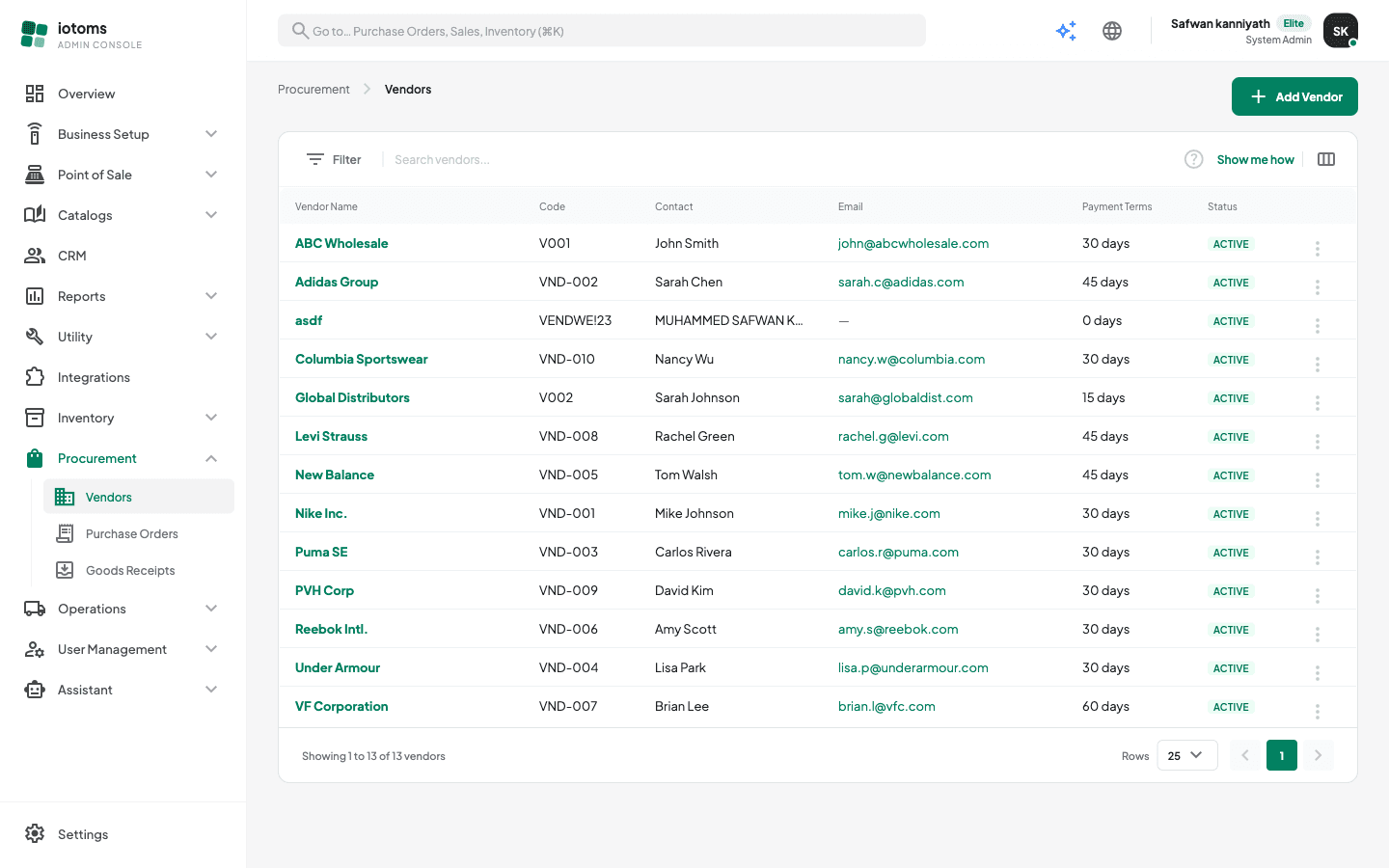
Finding a vendor
- Use the Search vendors… box at the top of the list to search by name.
- Click the filter button to open the filter drawer, where you can switch between All vendors and Active only. Filters apply immediately — there is no Apply button. The panel names how many filters are on under its title; Clear all in the top-right resets them, and the green button at the bottom — "Show N vendors" — just closes the panel over the list it is already showing.
- Long lists are paginated — change the page size (10 / 25 / 50) at the bottom.
Viewing a vendor's details
Click the vendor's name in the list (or choose View details from the row's ⋯ menu). The detail page shows:
- Catalog Items — the items linked to this vendor, with their unit cost, lead time in days, and whether this is the preferred vendor for the item.
- Contact — name, email, phone, and address.
- Details — status and creation date.
Editing a vendor
- From the list, open the row's ⋯ menu and choose Edit (or click Edit on the vendor's detail page).
- Change any field except the Vendor Code, which is locked after creation.
- Save from the amber bar at the bottom.
Deactivating a vendor (instead of deleting)
There is no delete action for vendors — vendors stay on record because past purchase orders and goods receipts reference them. To retire a supplier:
- From the list, open the row's ⋯ menu and choose Toggle status, or
- On the edit form, switch the Status pill to Inactive and save.
Use the Active only filter to hide inactive vendors from your day-to-day view.