
Changing the Date Range
The register only loads transactions for the selected date range, and it starts on Today. Changing the range is how you review yesterday's sales, this week's, or any custom period.
Steps
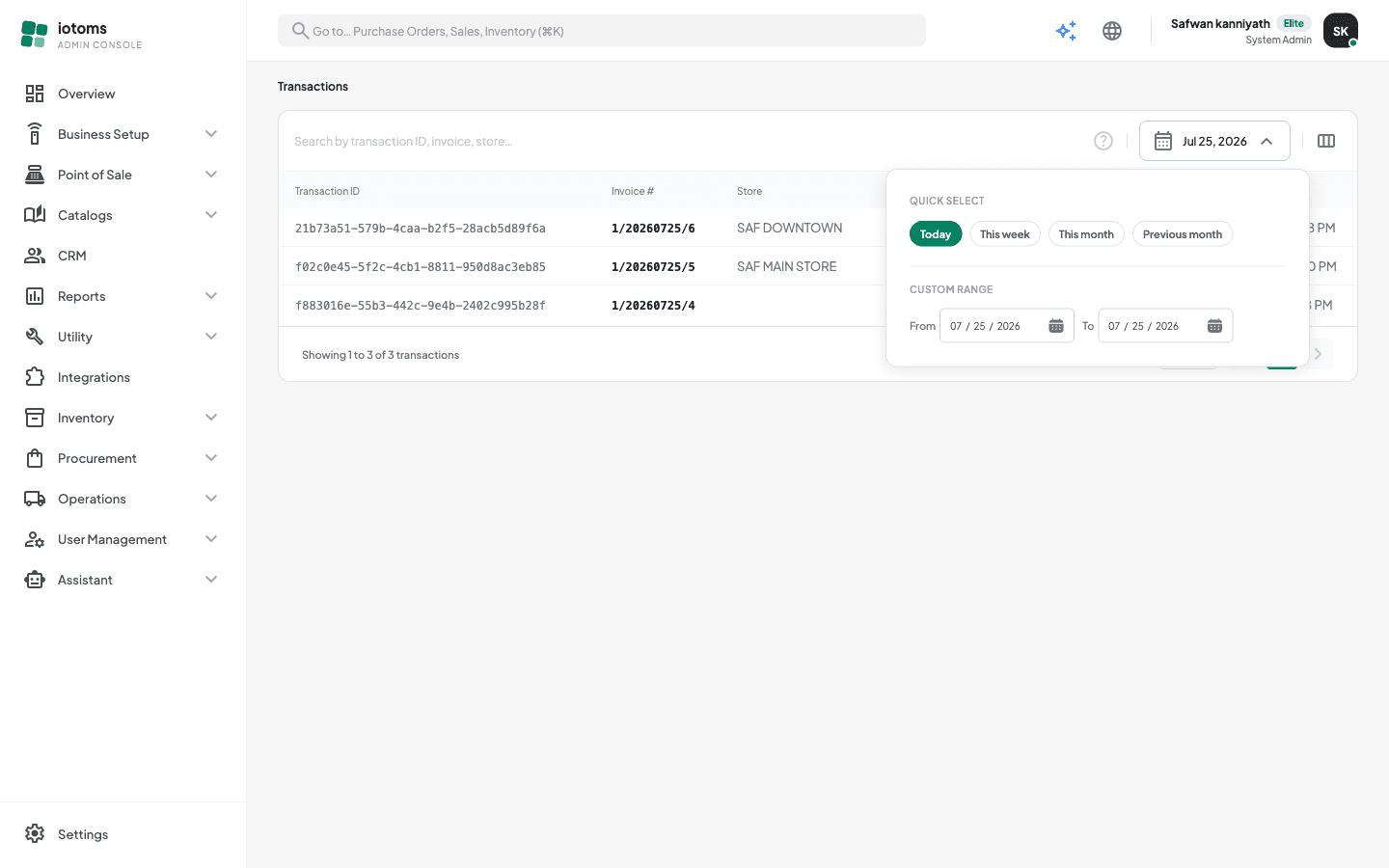
- In the toolbar above the list, click the date button — it shows a calendar icon and the current range (e.g. "Jul 25, 2026").
- A panel opens with Quick Select presets:
- Today — just today's sales (the default).
- This week — from Monday through today.
- This month — from the 1st through today.
- Previous month — the whole previous calendar month. Click a preset and the list reloads immediately.
- For any other period, use the Custom Range section below the presets: pick a start and end date. As soon as both are set, the list reloads for that range.
- The date button's label updates to show the range you picked (e.g. "Jul 1 – Jul 25, 2026"), so you always know what period you're looking at.
Changing the range takes you back to page 1 of the results. The range filters by the transaction's business date — the trading day it belongs to — which for field sales is the rep's working day, not the moment it synced to the server.