
Reviewing and Fixing Column Mappings
After your file is uploaded (see Importing Data with the AI Import Wizard), the mapping step shows how each column in your file will become an IoTOMS field. In AI mode this arrives pre-filled with confidence scores; in manual mode you build it from scratch. Either way, nothing is imported until you've confirmed it.
1. Confirm the record type
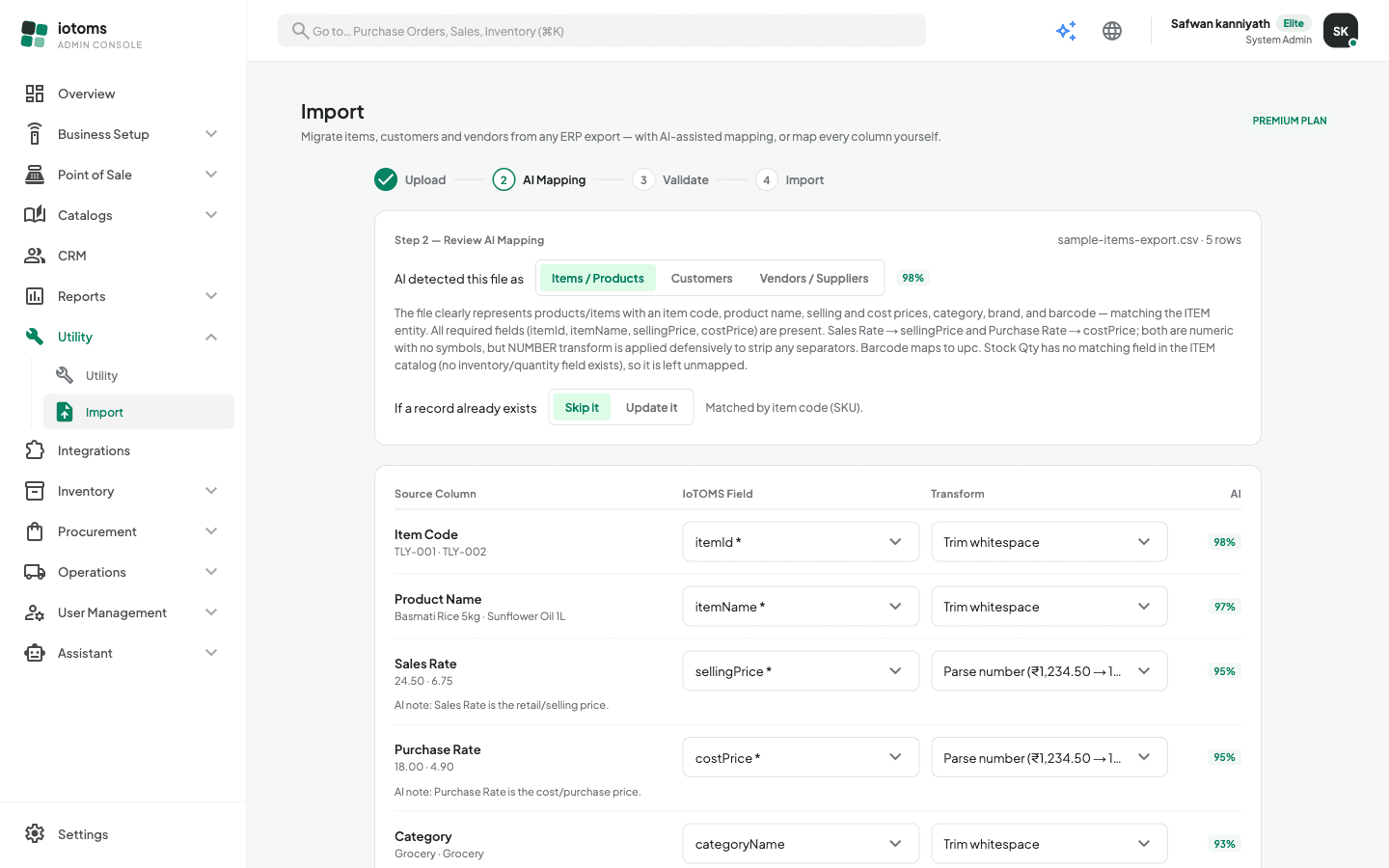
At the top of the step, the wizard shows what the file was detected as (AI mode: "AI detected this file as", with a confidence percentage and a short explanation; manual mode: "This file contains"). If it guessed wrong, click the correct type in the pill row: Items / Products, Customers, or Vendors / Suppliers.
- In AI mode, switching the type re-runs the analysis with your choice forced.
- In manual mode, switching the type resets the column mappings below to the new field list.
2. Choose what happens to existing records
Under "If a record already exists", pick:
- Skip it — existing records are left untouched (the safe default), or
- Update it — existing records are overwritten with the file's values.
The wizard tells you how matches are found: items by item code (SKU), customers by email, vendors by vendor code.
3. Review the mapping table
Each row of the table is one column from your file, with a sample of its real values underneath:
- Source Column — the column as it appears in your file.
- IoTOMS Field — the field it will import into. Required fields are marked with
*. Pick "— Ignore this column —" to leave a column out entirely. - Transform — an optional cleanup applied to every value: trim whitespace, UPPERCASE/lowercase, parse a number (e.g.
₹1,234.50 → 1234.5), parse a whole number, normalize a date toYYYY-MM-DD, map values (enum), or split a full name into first/last name. - AI (AI mode only) — the AI's confidence in that mapping as a percentage chip. Green means high confidence; amber or red mappings deserve a second look. Some rows also carry a short "AI note" explaining the choice.
Mapping values for choice fields
When a target field only accepts fixed values (a status, for example), a Value mapping panel appears under that row listing every distinct value found in your file. Pick which IoTOMS value each one becomes — e.g. your old system's Y → ACTIVE.
Splitting one column into two fields
Click "Add another mapping" at the bottom of the table to add an extra row — useful when one source column needs to feed two fields (for example a "Full Name" column mapped once with the Full name → first name transform and again with Full name → last name). Extra rows have their own column picker and a remove button.
4. Fix warnings before continuing
The Preview import button stays disabled until:
- every required field has a column mapped to it (an amber warning lists any that are missing), and
- no IoTOMS field is mapped more than once (duplicates are flagged in red on the row).
Start over returns to the upload step and discards the file. When the mapping is clean, click Preview import — see Previewing and Running the Import.