
Ways to Move Data In and Out
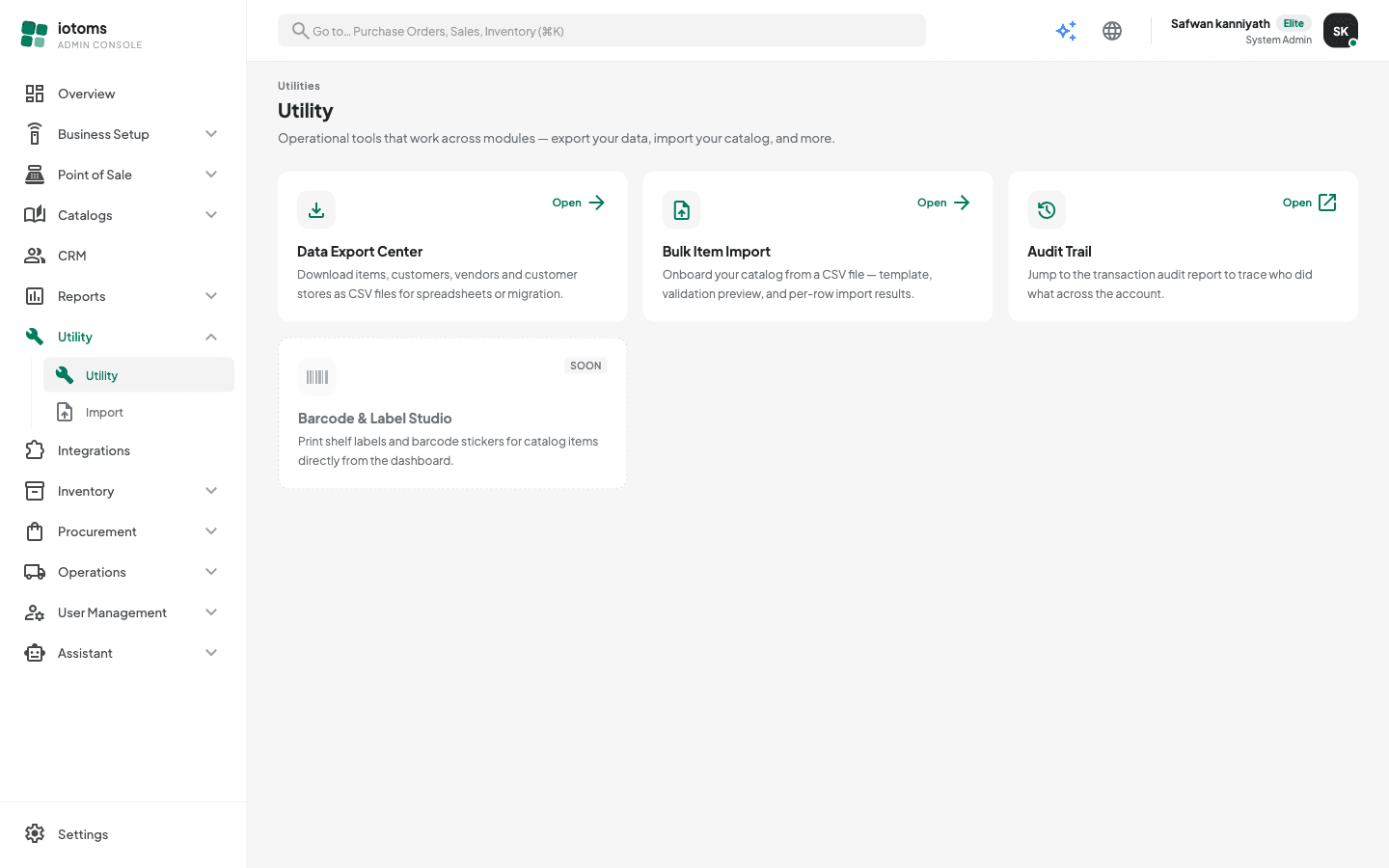
IoTOMS gives you three tools for moving data in bulk — two for bringing data in (from a previous ERP, a spreadsheet, or another system) and one for getting data out as CSV files. All of them live under the Tools section of the sidebar.
The three tools
- Import (
/import) — the universal import wizard. Take an export from any system (Tally, SAP B1, Zoho, QuickBooks, plain Excel…) and load it as Items, Customers, or Vendors. AI can read your file and propose the column mapping for you, or you can map every column yourself. This is the tool to reach for when migrating from another ERP. - Bulk Item Import (
/utility/import) — a simpler, template-based importer for catalog items only. Download the exact CSV template, fill it in, and import up to 1,000 items at a time. Best when you're preparing the file from scratch rather than converting an existing export. - Data Export Center (
/utility/export) — one-click CSV downloads of your master data: Catalog Items, Customers, Vendors, and Customer Stores.
Which import tool should I use?
| You have… | Use |
|---|---|
| An export from another ERP/system, in whatever column layout it produced | Import — AI maps the columns for you |
| Customers or vendors to load (not just items) | Import — it's the only tool that handles all three record types |
| A file you're building yourself, and you only need items | Bulk Item Import — the template guarantees the columns are right |
Where the tools live
- Sidebar → Tools → Utility opens the hub page with tool cards for the Export Center and Bulk Item Import (plus a shortcut to the Audit Trail report).
- Sidebar → Tools → Import opens the universal AI import wizard directly.