
Importing Data with the AI Import Wizard
The Import wizard migrates items, customers, and vendors into IoTOMS from an export produced by any other system. You don't need to reshape the file first — upload it as-is, and AI reads the structure and proposes how each column maps into IoTOMS. If you prefer full control (or AI isn't available on your plan), a manual mapping mode does the same job with you picking every field.
The wizard runs in four steps shown across the top of the page: Upload → AI Mapping → Validate → Import (in manual mode the second step is just called Mapping).
Step 1 — Upload your export
- Open Tools → Import from the sidebar.
- Export your data from your current system (Tally, SAP B1, Zoho, QuickBooks, Excel…) — any of CSV, TSV, XLSX, or JSON, up to 20,000 rows / 25 MB.
- Pick a Mapping method using the toggle:
- AI-assisted mapping — AI detects what the file contains and proposes the column mapping.
- Manual mapping — you pick the record type and map each column yourself. (If AI features aren't enabled for your account, the toggle doesn't appear and the wizard works in manual mode.)
- Drop the file onto the dashed upload box, or click it to browse.
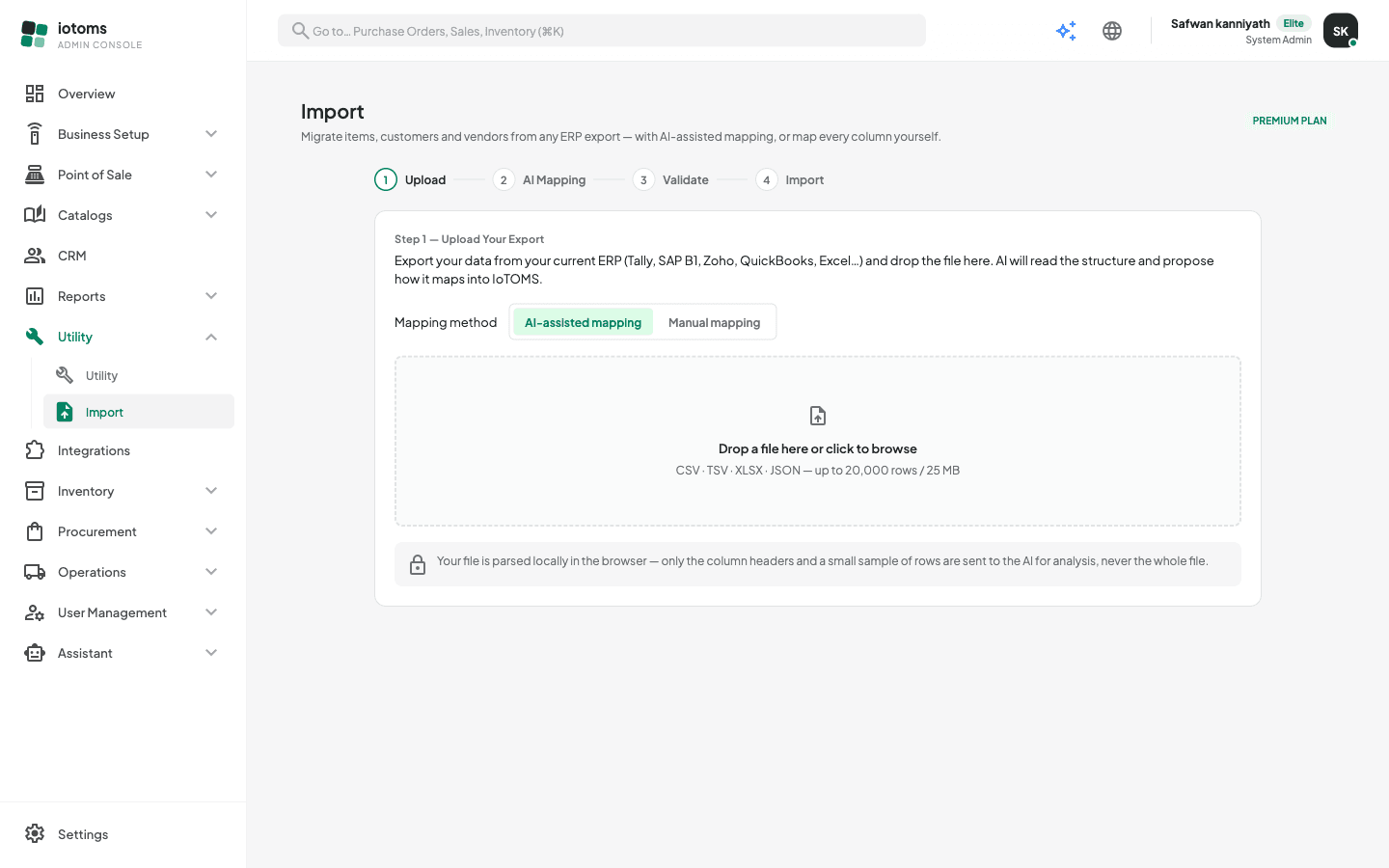
In AI mode you'll see "AI is analyzing your file…" while it detects the record type and maps the columns; in manual mode the file is simply read and the field list loaded. Either way you land on the mapping step next.
What happens to your file
Your file is parsed locally in your browser. In AI mode, only the column headers and a small sample of rows are sent to the AI for analysis — never the whole file. In manual mode, nothing is sent anywhere until you review the mapping and choose to import.
What the wizard can import
- Items / Products — matched against existing records by item code (SKU)
- Customers — matched by email
- Vendors / Suppliers — matched by vendor code
If the upload fails, the error appears in red under the drop zone — the most common causes are an unreadable file or an unsupported format.
Next
Once the file is analyzed you review (and correct) the proposed mapping — see Reviewing and Fixing Column Mappings.