
Exporting Your Data as CSV
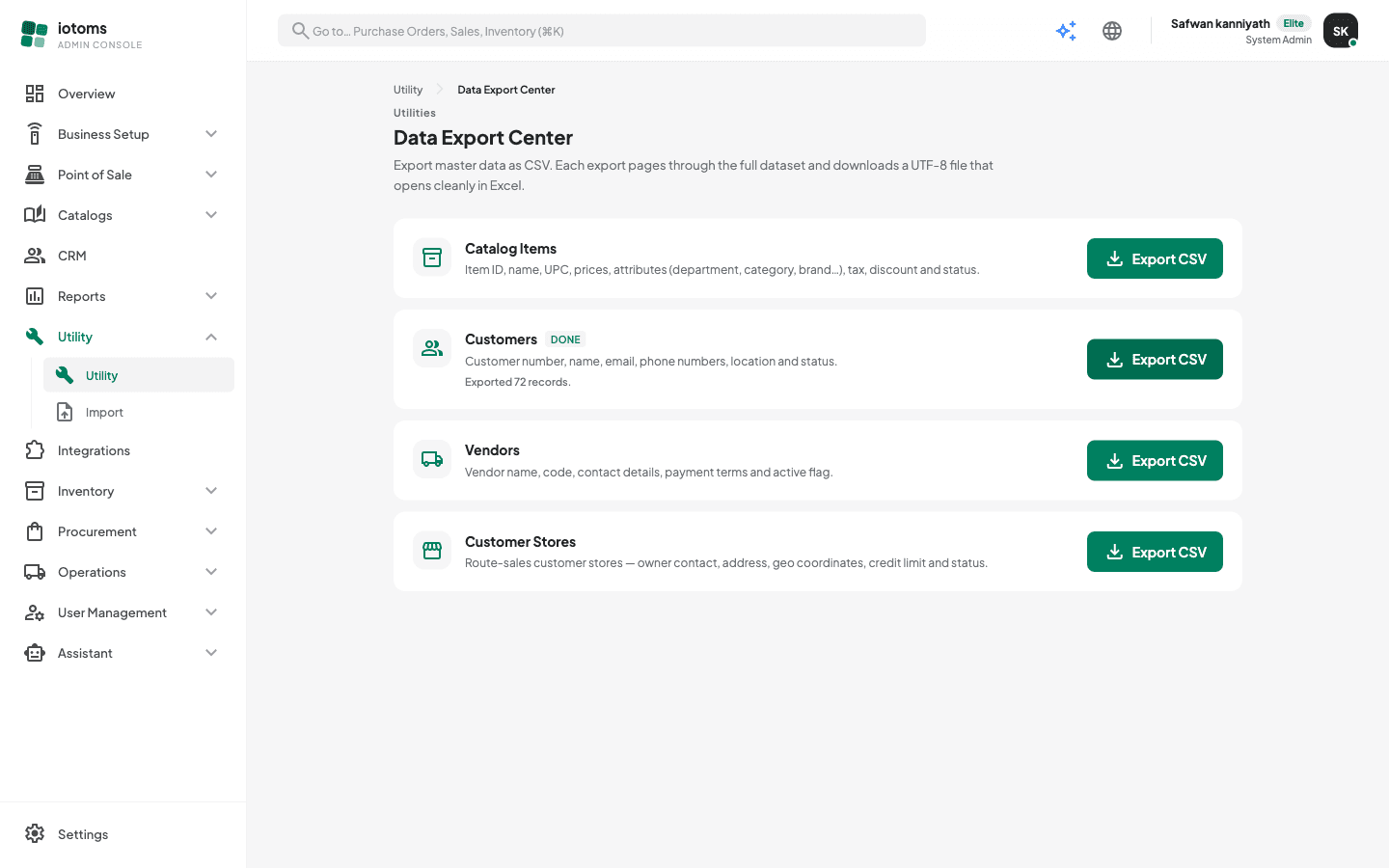
The Data Export Center downloads your master data as CSV files — for spreadsheets, reporting, backups, or migrating to another tool. Each export pages through the entire dataset (not just the page you're looking at in a list screen) and produces a UTF-8 file that opens cleanly in Excel.
What you can export
- Catalog Items — item ID, name, UPC, prices, attributes (department, category, brand…), tax, discount and status.
- Customers — customer number, name, email, phone numbers, location and status.
- Vendors — vendor name, code, contact details, payment terms and active flag.
- Customer Stores — route-sales customer stores: owner contact, address, geo coordinates, credit limit and status.
Steps
- Open Tools → Utility from the sidebar, then click the Data Export Center card (or go straight to
/utility/export). - Find the dataset you want and click its Export CSV button.
- Watch the status line under the dataset name — it counts pages and records as they're fetched ("Fetching page 3… (200 records)"), then generates the file.
- The CSV downloads automatically, named after the dataset and today's date (e.g.
items-2026-07-25.csv), and a Done badge confirms how many records were exported.
Good to know
- Exports run one at a time per dataset — the button is disabled while an export is in progress, but you can export different datasets in parallel.
- If a dataset has no records, you still get a CSV containing just the header row, and the status line says so.
- If an export fails partway (for example a network drop), an Error badge and message appear — just click Export CSV again.
- Need data back in? See Importing Data with the AI Import Wizard — the exported CSVs are a valid starting point for imports into another IoTOMS account.