
Creating and Updating Records by Asking
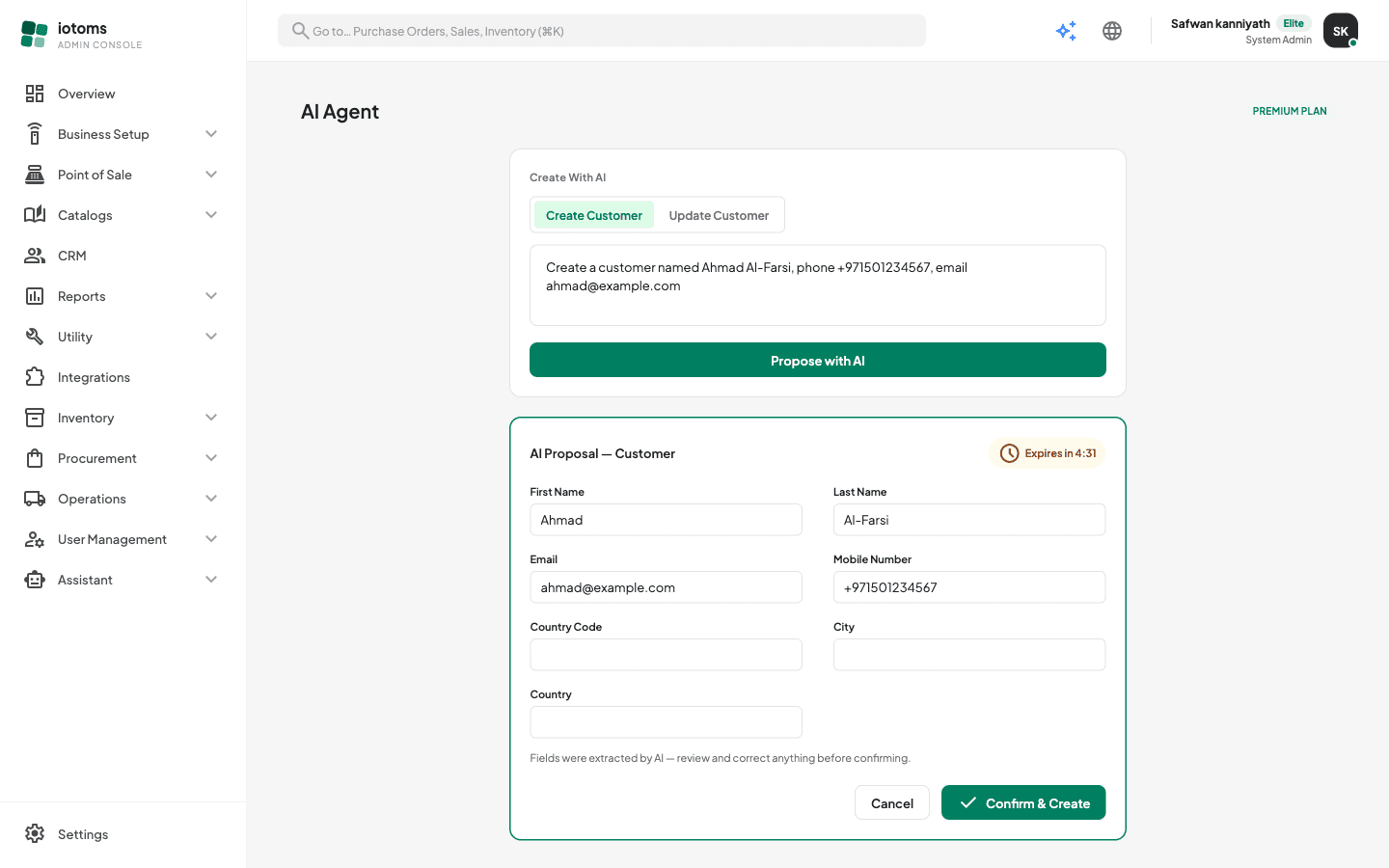
You can create or update a customer just by saying so in the assistant — there is no separate mode to switch into and no buttons to hunt for. The AI never changes anything on its own: it drafts a proposal in the conversation, you review and correct the extracted fields, and only your Confirm & Create click saves it.
Steps
- Open Assistant → AI Assistant.
- Type what you want done in the message box and send it. For example:
- "Create a customer named Ahmad Al-Farsi, phone +971501234567, email ahmad@example.com"
- "Update customer CUS-000-2026-00042, set email to newaddress@example.com"
- For an update, include the customer number (e.g.
CUS-000-2026-00042) so the assistant knows which customer to change. If you leave it out, it will ask you for it before doing anything.
- An AI proposal card appears in the conversation with the fields the AI extracted — name, contact details, and so on. Review every field and edit anything the AI got wrong; on updates, the customer number is shown locked and can't be edited.
- Check any amber warning notes on the card — they flag things worth double-checking before you commit.
- Watch the Expires in m:ss timer in the card's corner. A proposal is only valid for a few minutes; if it expires, nothing is saved and you simply send the description again.
- Click Confirm & Create to save, or Discard to throw the proposal away.
- On success the card turns into a confirmation ("Customer created" or "Customer updated") with a View record link that takes you to the customer's page.
Adding a catalog item
Catalog items work exactly the same way — describe the item and confirm the card. That flow has its own page, because the fields to check are different: Adding a Catalog Item by Asking.
What you're allowed to change
The assistant is held to the same permissions as the screens. You can only draft a change of a kind your role is allowed to make by hand — if you can't reach Customers, asking for a customer won't produce a proposal, and the matching templates aren't shown to you at all. See What the Assistant Can and Can't Do.
Asking a question instead of making a change
Questions stay questions. "How do I create a customer?" gets you an answer and the matching help guide — it never drafts a record. Only a plain instruction ("Create a customer named…") starts a proposal.
Good descriptions
Write the way you'd tell a colleague: name, phone, email, city — all in one sentence. Keep it plain language; if you paste something that looks like code or a link, the assistant asks you to describe it in plain words instead.
Not sure how to phrase it?
Click Templates in the Assistant panel on the left. The list includes ready-made phrasings for creating a customer, updating a customer, and building a QuickPick — picking one drops the sentence into the message box so you can edit it before sending.